Summarize and explain queries
- Latest Dynatrace
- Tutorial
- Updated on Jan 28, 2026
You can use Dynatrace Intelligence generative AI in Dashboards and Notebooks to translate DQL into natural language. Our generative AI can provide a summary as well as a detailed explanation of any existing DQL queries.
Who this is for
This article is for any users who want to better understand or better DQL queries, or who want to familiarize themselves with DQL.
What you will learn
In this article, you'll learn how to use Dynatrace Intelligence generative AI to summarize and explain DQL queries.
Before you begin
Dynatrace Intelligence generative AI explanations are session-based and may vary in structure. This means that explanations donât persist across sessions, so youâll need to regenerate them after a session ends. While Dynatrace Intelligence generative AI often provides line-by-line explanations, it may instead group related lines into meaningful chunks (for example, when multiple lines form a single command or function).
Prior knowledge
- Dynatrace Intelligence generative AI overview
- Getting started with Dynatrace Intelligence generative AI.
Prerequisites
- Dynatrace SaaS environment.
- You have the
ALLOW davis-copilot:dql2nl:execute;permission. To learn how to set up the permissions, see Permissions in Grail. - You have completed the Dynatrace Intelligence generative AI setup described in Getting started with Dynatrace Intelligence generative AI.
Explain queries with generative AI in Notebooks
- Go to
 Notebooks and open a notebook you can edit.
 - Select a notebook section that contains a query you want to summarize or explain.
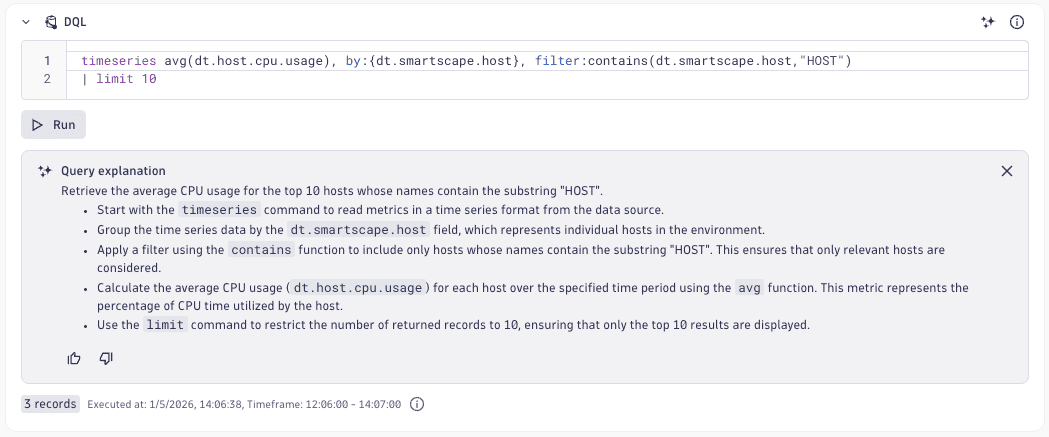
- Open the menu and select Explain query. A summary followed by a detailed explanation is generated under the query input field.
Explain queries with generative AI in Dashboards
- Go to
 Dashboards and open a dashboard you can edit.
 - Select a dashboard that contains a DQL query you want to summarize or explain.
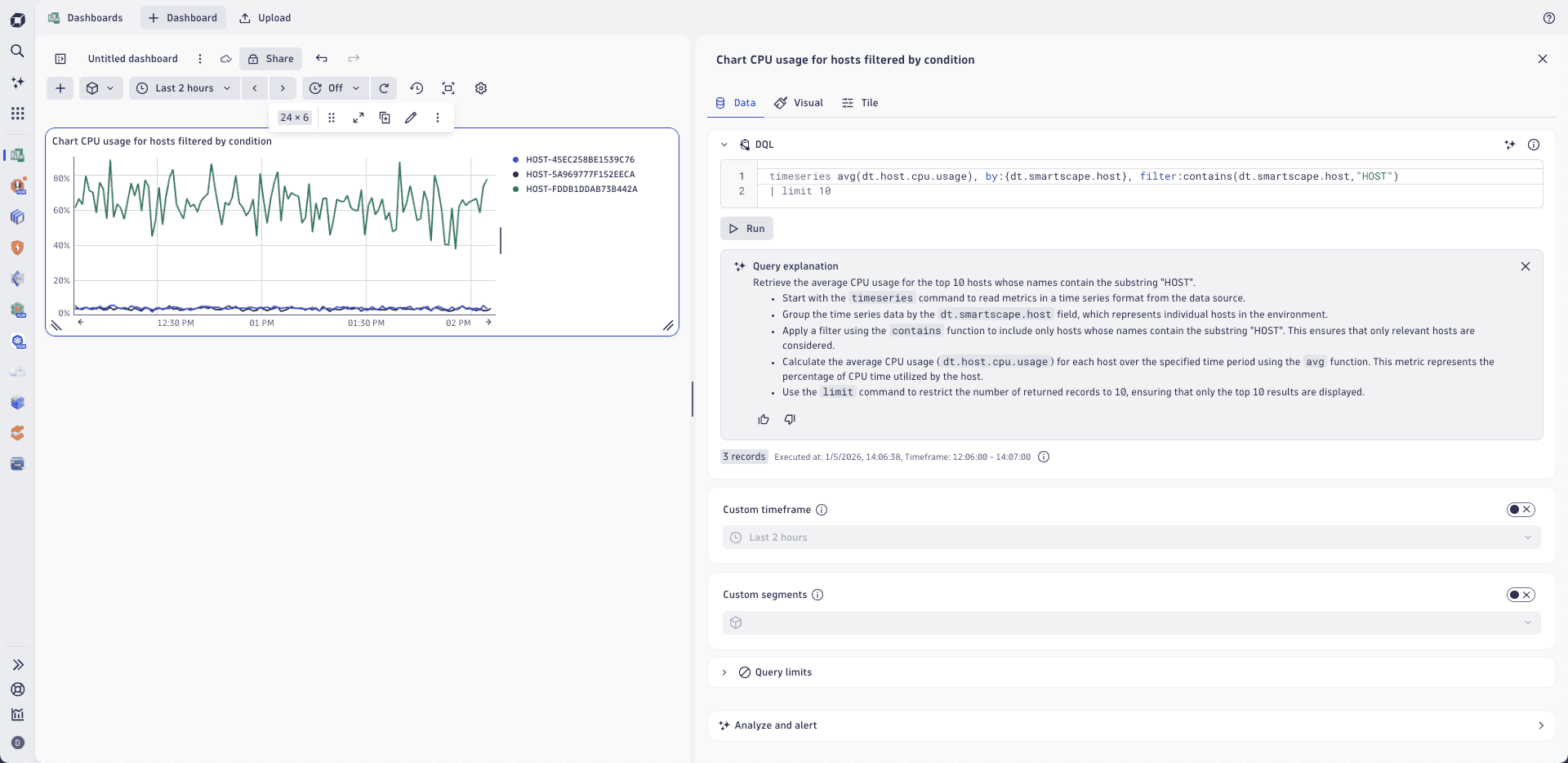
- Select Edit to open the edit menu on the right.
- In the DQL section of the edit menu, select Explain query. A summary followed by a detailed explanation is generated under Run.
Give feedback
To help us improve Dynatrace Intelligence generative AI, you can provide feedback directly from your notebook or dashboard. Under the generated explanation box:
- Select
 if generative AI has interpreted the query correctly and has generated an adequate explanation that meets your expectations.
 - Select
 if generative AI has has incorrectly interpreted the DQL query or generated a query explanation that has failed to meet your expectations. Please provide additional context for us to understand how we can improve this functionality to meet your needs and expectations.
Do not share personal or confidential information in your feedback.
Related topics
- Dynatrace Intelligence generative AI overview
- Get started with Dynatrace Intelligence generative AI
- Query with natural language
- Dynatrace Intelligence generative AI FAQ