Anomaly Detection app
- Latest Dynatrace
- App
- 3-min read
- Updated on Mar 26, 2025
 Anomaly Detection provides you with a unified overview of all anomaly detection configurations in your Dynatrace environment.
Prerequisites
Permissions
The following table describes the required permissions.
Permission
Description
settings:schemas:read
Read access to settings schemas.
settings:objects:read
Read access to settings objects.
settings:objects:write
Write access to settings objects.
iam:bindings:read
Read access to the policy binding defining the automation service impersonation authorization.
iam:bindings:write
Write access to the policy binding to define the automation service impersonation authorization.
iam:service-users:use
Allows using service users
davis:analyzers:read
Read list of analyzers
state:user-app-states:write
Write user settings
state:user-app-states:read
Read user settings
davis:analyzers:execute
Execute Threshold Suggestion Analyzer
10
rows per page
Page
1
of 1
User permissions can only be changed by your Dynatrace administrator in Account Management > Identity and Access Management. To learn more about user groups and assigning permissions, see Working with policies.
Installation
Make sure the app is installed in your environment.
Enable or edit Anomaly Detection authorization settings
Before you attempt to run or create a custom alert, make sure that you have all the required permissions in Account Management. If you're running Anomaly Detection for the first time, you'll need to enable authorization settings.
To enable or edit Anomaly Detection authorization settings
- In Anomaly Detection, go to Settings > Authorization settings.
- Select the required permissions in the Permissions list.
Get started
Concepts
Use cases
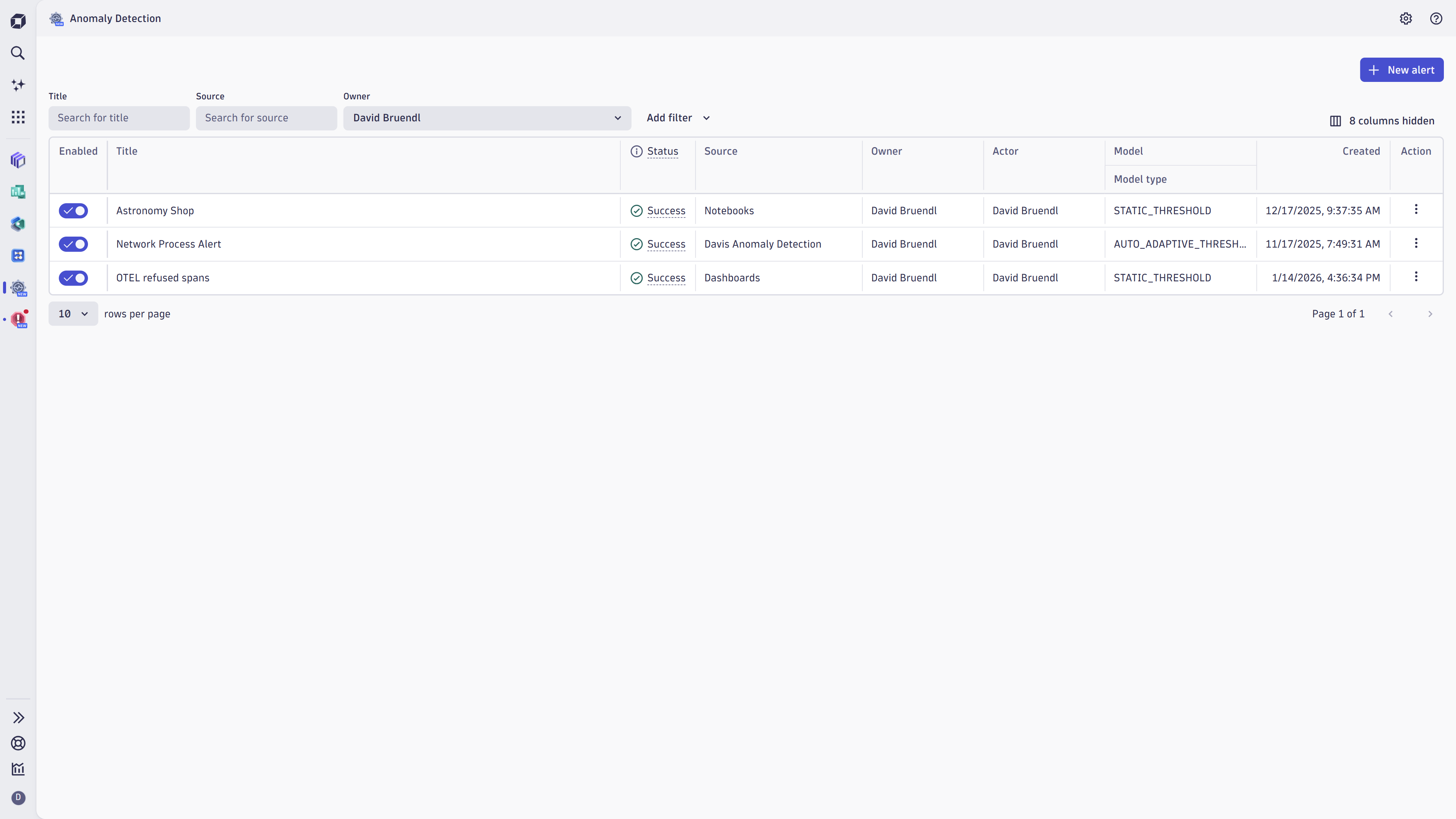
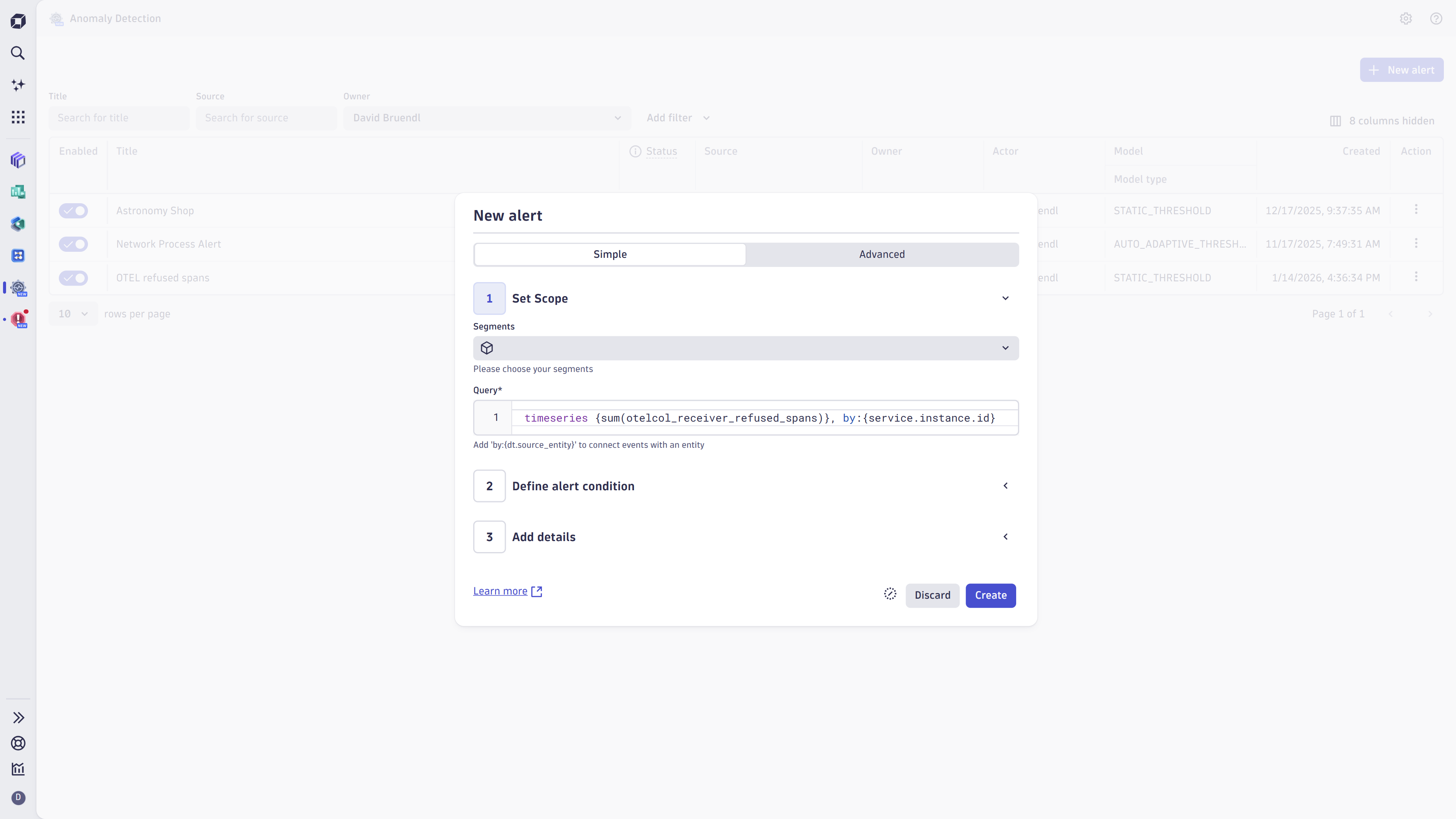
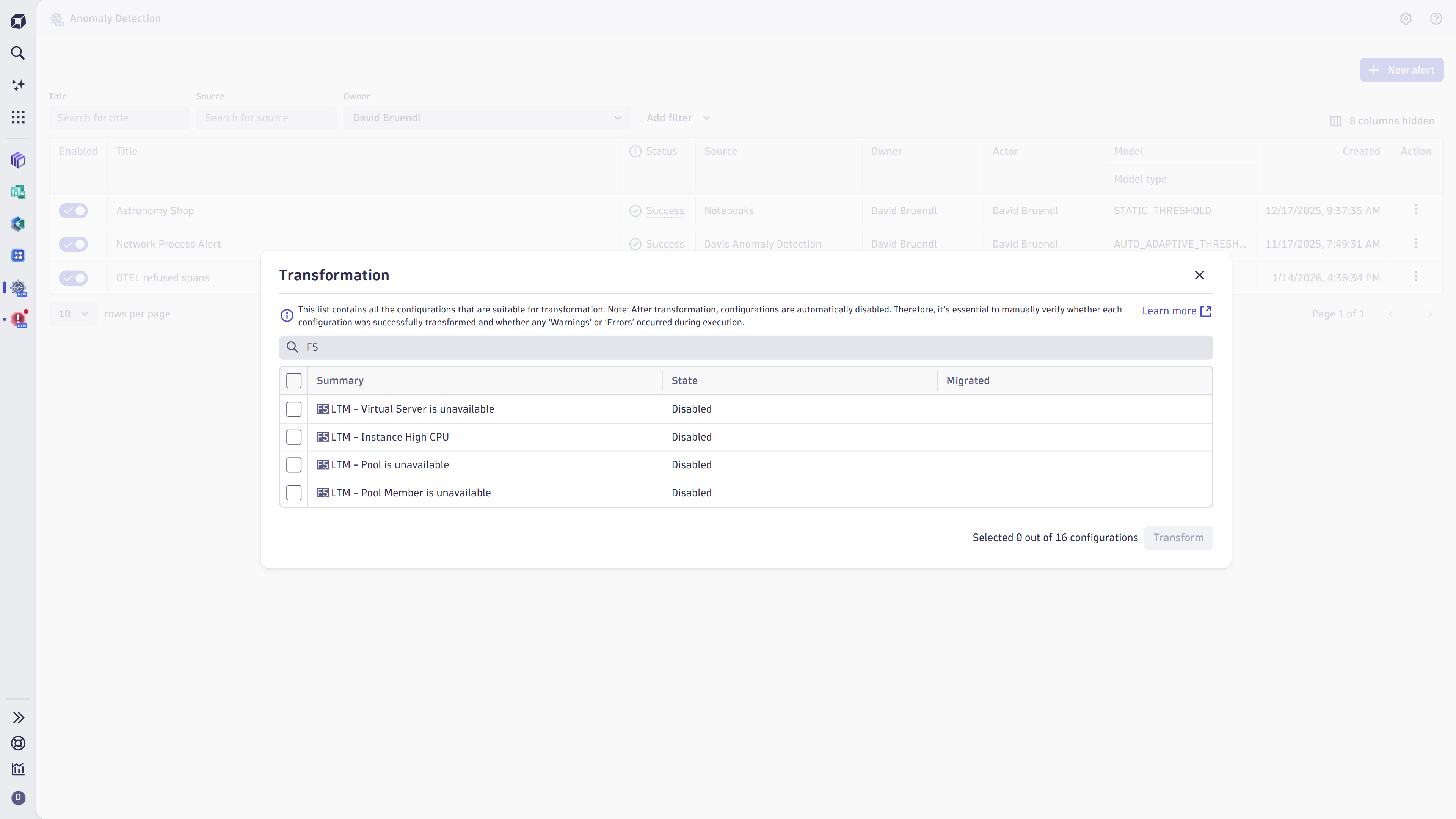
1 of 3Get an overview of all available anomaly detectors.
When you open the app, you can see the information about your existing anomaly detection configurations, such as:
- StatusâIf there's an error, the status is displayed as Error, select it to open the detailed report in a notebook.
- Source
- Type of anomaly prediction model
To show or hide columns, select Column settings and then select the columns you want to display. You can also filter the table by any of these parameters.
Learning modules
Go through the following processes to learn how to use Anomaly Detection:
[01Anomaly Detection DQL writing guide
- How-to guide
-
Best practices for creating Anomaly Detection custom alert DQL queries.](anomaly-detection-app/davis-ad-dql-best-practice.md)[02Anomaly Detection DQL optimization guide
-
How-to guide
-
Best practices for optimizing Anomaly Detection DQL queries.](anomaly-detection-app/davis-ad-dql-optimization.md)[03Configure a simple custom alert
-
How-to guide
-
Learn how to create and edit simple custom alerts in the Anomaly Detection app.](anomaly-detection-app/configure-a-simple-ad.md)[04Configure an advanced custom alert
-
How-to guide
-
Learn how to create and edit advanced custom alerts in the Anomaly Detection app](anomaly-detection-app/configure-an-advanced-ad.md)[05Anomaly Detection status types
-
Explanation
- An explanation of Anomaly Detection status types](anomaly-detection-app/anomaly-detection-status-types.md)
Custom alert actors
Every execution of custom alert is performed in the context of a user. If you're an administrator or have permission to use a predefined service user, you'll see two types of users you can choose when creating or editing a custom alert: actor and service user. Otherwise, you'll be the only visible actor.
Actor
An actor is the user used to execute the custom alert. Unless you have administrator rights or permission to use a predefined service user, you'll only have the option to set yourself as an actor for either a new or updated custom alert configuration.
If you edit an existing custom alert created by a different actor, Dynatrace will treat the modified configuration as a new custom alert with permission profiles of a new actor.
Service user
We recommend using service users as actors for custom alerts created for a department or organization use case. This makes the custom alert independent of the status of the user who maintains it.
There are no specific authorization settings for a service user. The permissions granted to a service user should follow the least privilege principle. To learn more about managing service users, see Service users.

Explore in Dynatrace Hub
Detect anomalies in timeseries using Anomaly Detection.
Related topics
- Anomaly Detection status types
- Dynatrace Intelligence limits
- [Video] Elevating Security with Anomaly Detection
- [Video] Anomaly Detection and Data Observability